Welcome to the Sacred Grove Guide. This will help you get started with a few tips on how to move around and interact with the environment in the Sacred Grove.
When you enter the Sacred Grove you will be connected to two servers. One controls the game and synchronises the players over the network. The other is a voice chat server that allows us to speak to, and be heard by, each other.
The first thing to understand is about the focus of your mouse. If your character has the focus of the mouse, you won’t be able to see the mouse pointer, and you won’t be able to interact with the game menus or other objects in the game.
To take the focus away from the character, press the ESC key on your keyboard. To give focus back to the character, click near the center of the screen.

When you enter the Sacred Grove you will be automatically connected to a voice chat server. As long as you have an active default microphone, you will be heard when you speak.
You can Mute your microphone by clicking the microphone icon at the top right of your screen. This is important especially during ceremony.

To change the default input and output devices, click the Audio icon in the main menu, see below.
Player Movement
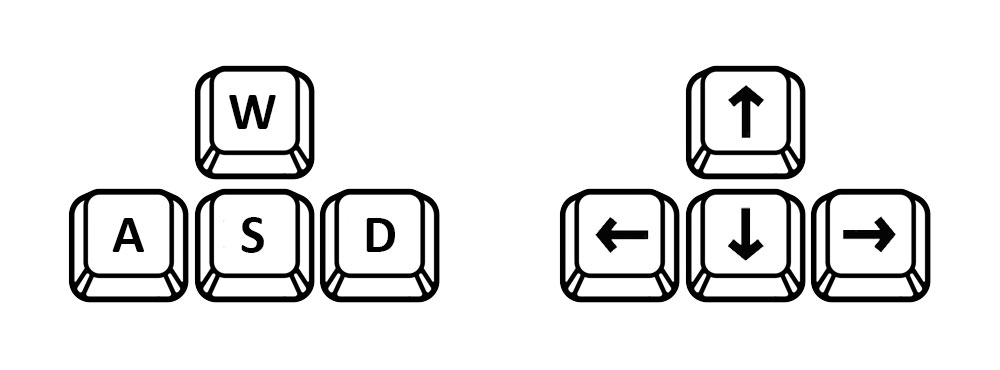
To move around the scene you can use either the WASD keys, or the Arrow keys on your keyboard. You can steer with your mouse, and look around.
There are 2 modes of play, 1st person and 3rd person. To switch to 1st person press the 1 key. To switch to 3rd person press the 3 key.
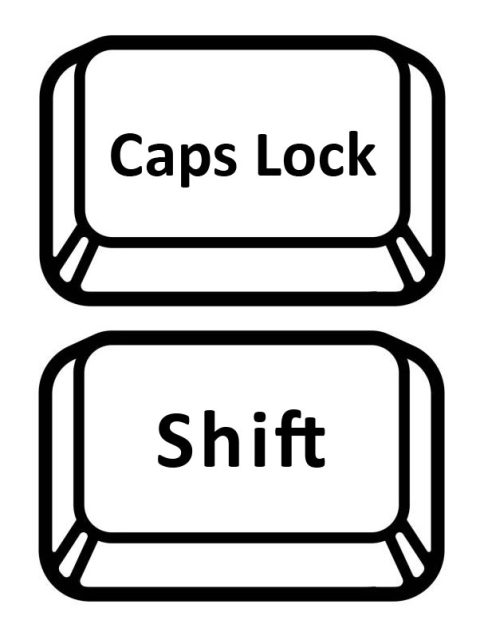
Hold down the left Shift key while using one of the movement keys to run.
If you turn the caps lock on you will walk really slow. This can be handy when trying to catch hazelnuts that drop from the Hazelnut trees.
There are a number of keyboard shortcuts that you can use.
- Esc will open up the main menu with various clickable items around the screen. This will also remove focus from the character and the mouse pointer will become visible. If you find any objects in the game that are clickable, you will need to be in this state.
- Shift M will open up a map view showing where you are and also were the other players are.
- Shift C opens up a compass which will show you the direction your character is facing.
- Shift T will show the current time in the Sacred Grove. Note: To conserve resources it is best not to leave this open.
- Shift N will open up a panel to change the name that is displayed above you.
- Shift P will open up the Players List. You can see who is online at the moment, and by clicking on the teleport icon next to their name, you can be taken to where they are.
- Shift Q will open up the Quality settings. The FPS (Frames per second) is visible. If the FPS is very low, or the game is lagging or becoming unresponsive, lowering the quality settings may help.
Click the Esc key or Shift M to open the main menu which is situated in the bottom left of your screen. Depending on your level of access you will see 3 or 4 icons.

This is the exit icon and will disconnect you from the server and close the game.

This is the appearance icon and will open up the Appearance panel.

This is the audio icon and will open up the Audio Settings panel.

This is the settings icon and will open up the Settings panel. Note: this is only available to the Host or a Server Admin.
The first thing you will want to do is customise your appearance. Creating realistic looking 3D characters is difficult without requiring high end computers. I have done my best to give you enough options that you can create a unique looking character. Once you open the main menu by pressing the escape key, and clicking on the appearance icon, you will see the Appearance menu.
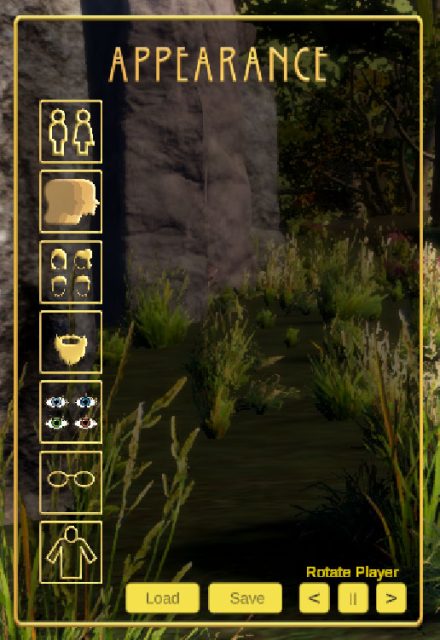
Down the left hand side is a scroll-able list of the customisable sections. To view the choices that aren’t visible you can click and drag or use your scroll wheel while pointing at the list.
Each one will have a number of options for you to choose from.
Clicking on one of the main choices will open up another scrollable list of choices. These are scrolled horizontally and can alos be viewed by clicking and dragging or using the scroll wheel while pointing at the list.
Save your Appearance: don’t forget to click the Save button to save your changes once you have finished customising your appearance. Next time you enter the Sacred Grove your character will be set to your saved features.
Rotate your Character: while you are customising your characters appearance you can rotate your character giving you a view from all directions.
Genders: currently there are only 2 options for Male or Female. And there is only one base model for each one. I hope to increase these options in the future.
Skin tones: there are 4 different skin tones to choose from, but you can also customise them further using the build in colour picker. Choose a base tone and then make it darker or lighter by choosing a variation from white to black, or choose a colour and give your skin an extra shade.
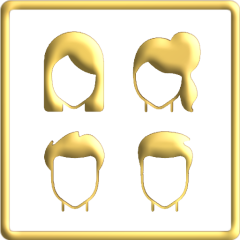
Hair Choices: it is difficult to make hair look good without using a lot of computer resources. I have done my best to provide some choices for your character. One you choose a hair style you will have a number of basic hair colours that you can choose from. You can also customise these by using the colour picker. You can have different colours for the main hair colour, the roots colour, and the tips colour.
Beard choices: you can choose to have a beard. The beard choices also have the same basic colour choices as the hair.
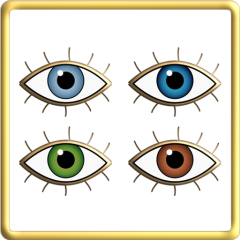
Eyes: there are 4 basic eye colours to choose from. But these can also be adjusted using the colour picker giving you a large variety of eye colours to choose from.
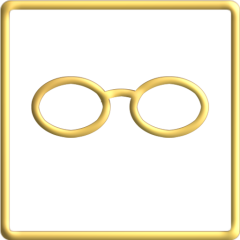
Glasses: you can choose wear a pair of glasses if you wish. There are a number of choices including reading glasses and sun glasses.
Clothing
There are quite a few medieval style clothing choices for you including robes, shirts and pants, or dresses. They are far from perfect but hopefully there are enough variations for you to find something to suit. The choices will be expanded if the Sacred Grove becomes popular.
Note: It is best to choose the gender before making clothing choices as they are scaled to suit each model.
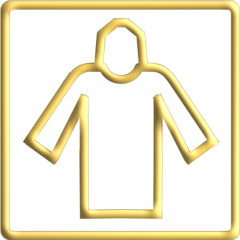
Robes: we have one basic robe with a variety of colour choices. There are preset choices for Bards, Ovates and Druids. These can be changed to other colours using the colour picker. There is a slider above the robe choices that allows the hood to be changed from up to down.
Note: until I implement advanced hair masks, the hair will show through the hood if it is up. You can choose whether to have no hair, or keep the hood down.
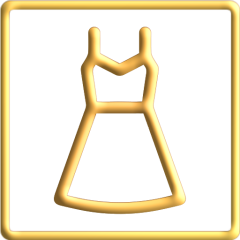
Dresses: there are a few dress styles in a variety of colours. There are preset choices for Bards, Ovates and Druids. These can be changed to other colours using the colour picker. Note: the dresses only fit the female base model.

Shirts: there are a number of shirts to suit any character. There are preset choices for Bards, Ovates and Druids. These can be changed to other colours using the colour picker.
Pants: there are a number of pants to suit any character. There are preset choices for Bards, Ovates and Druids. These can be changed to other colours using the colour picker.

Shoes: you can choose to go bare foot or there are a number of different styles of boots and shoes to suit any character. There are preset choices for Bards, Ovates and Druids. These can be changed to other colours using the colour picker.
Belts: some clothes look better with a belt. There are a few choices for you. These can be changed to other colours using the colour picker.
Tools: if you have found a staff and have it in your inventory, you can change the colour of the crystal to match your outfit. You will need to hold the staff before opening the appearance panel. Then choose the crystal in the tools menu and then change the colour with the colour picker.
There are number of items you can collect around the Sacred Grove. Some of them you collect by walking through them, others you need to get close to them and then click on them. Once they are in your inventory you will see the icons at the top left of your screen. To use an inventory icon you click on it.

Storm: want a cool effect, find a storm icon and activate it. It looks even better if you have a staff in your right hand.
Rain: like the storm but without the thunder and lightning.

Portal: there are some portals around the Sacred Grove. These let you travel from one place to another instantly. But some of them may need a key. The portal icon is that key. Some also need you to be above a certain grade.

Teleport: with a teleport icon you can choose one of the main spawn points and teleport there.

Awen: the Awen is a wildcard, with it you have unlimited quantities of all inventory items. You’ll need a number of inventory items not shown here. Find Cerridwen’s Journal for clues to gaining the Awen.
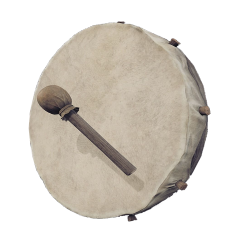
Drum: perfect for keeping a beat while participating in one of the ceremonies, or while sitting around a fire. You can find them near the ceremony spaces, click on one to add it to your inventory.
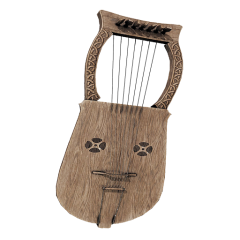
Lyre: perfect for playing a tune when enjoying the company of others. You can find them near the ceremony spaces, click on one to add it to your inventory.
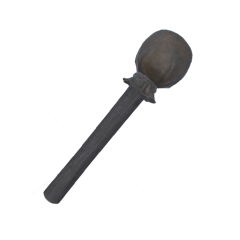
Shaman’s Rattle: ideal for setting the mood in a ceremony or around a fire. You can find them near the ceremony spaces, click on one to add it to your inventory.
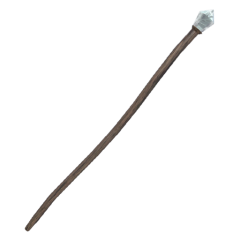
Staff: a staff is the perfect finishing touch to your character. Choose left or right hand. You can find them near the ceremony spaces, click on one to add it to your inventory.
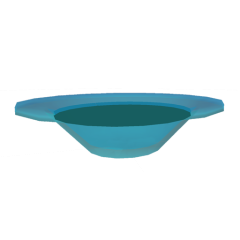
Water Blessing: if you are asked to bless the circle with Water, the host will give you one of these. Click it and then walk the circle to bless and consecrate the circle with the element of Water.
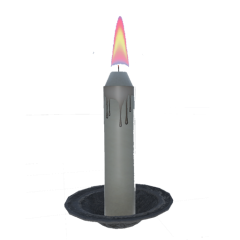
Fire Blessing: if you are asked to bless the circle with Fire, the host will give you one of these. Click it and then walk the circle to bless and consecrate the circle with the element of Fire.
To open the animations panel, click your right mouse button. You will see a scrollable panel down the left hand side of your screen. Click one of the icons to activate one of the animations.

Greet with Left Hand: perfect for greeting the Sun when entering the circle, or for sending peace to the quarters.

Greet with Right Hand: perfect for greeting the Sun when entering the circle, or for sending peace to the quarters.

Greet with Both Hands: perfect for greeting the Sun when entering the circle, or for sending peace to the quarters.

Casting or Un-Casting the Circle Clockwise: when inside a ceremony space you use this to cast or un-cast the circle clockwise. Activate it and then walk the circle. To stop the animation you click it a second time when you are finished.

Casting or Un-Casting the Circle Counter-Clockwise: when inside a ceremony space you use this to cast or un-cast the counter-circle clockwise. Activate it and then walk the circle. To stop the animation you click it a second time when you are finished.

Sit on the ground: click this to sit down, click it again to stand up. Some places have seats, like stone blocks or log seats. To sit on one of them, move close and then click on it.

Wink Left: one of a few basic facial expressions you can trigger.

Wink Right: one of a few basic facial expressions you can trigger.

Smile: one of a few basic facial expressions you can trigger.

Sneer: one of a few basic facial expressions you can trigger.
The Sacred Grove has been developed so you can have some fun and enjoyment, but most importantly, to celebrate the wheel of the year through ceremony. If you are attending a ceremony, please be mindful of the organisers.
Here are a couple of things to consider during a ceremony:
- Please arrive on time for the Ceremony. Late comers may be locked out.
- If you have NOT been asked to play the Drum, or other musical instruments, please don’t.
- If you are NOT leading the ceremony, please do not Cast the circle from the Animations panel.
- Please mute your microphone, or remain quiet unless you have a role in the ceremony.